
Track deals in a pipeline
Last updated:
Set up the pipeline your deals move through, then track every deal from first contact to won or lost.
Step 1: Set up your pipelines
Go to Settings → Organization → Deal Pipelines (called Account in a personal workspace). Choose Add Pipeline for each kind of deal, such as new sales, renewals and partnerships, then Add Stage for each step. Give every stage a Stage Name and Stage Type.
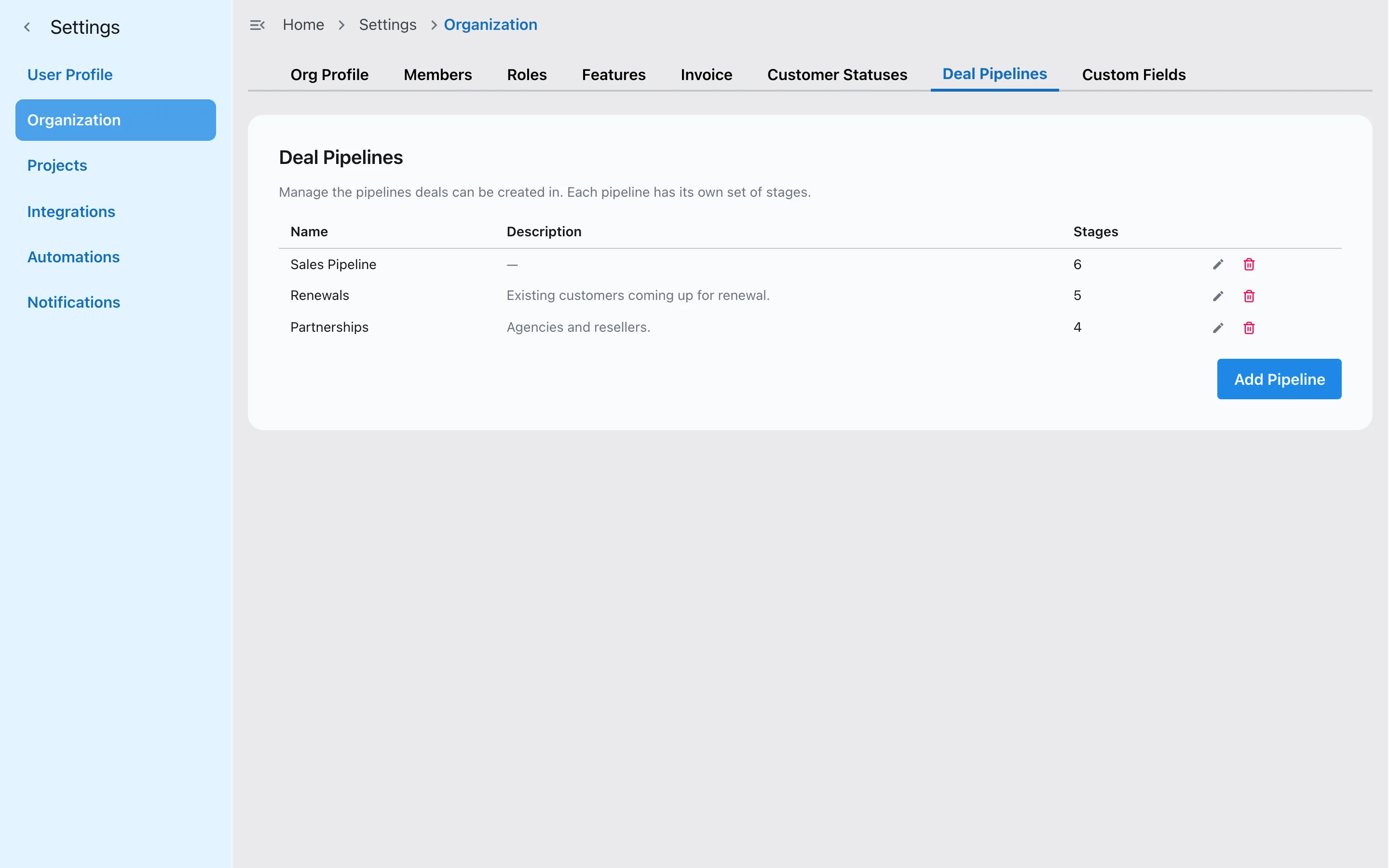
Three pipelines, each with its own stages. Free includes one pipeline, Pro five, and Growth and Enterprise as many as you need.
Step 2: Add a deal
Open Deals in the sidebar and choose New Deal. Enter a Title, the Amount, Probability (%) and Expected Close Date, then pick the Customer, Contact, Source, Priority and Assignee. Choose Create Deal.
Step 3: Move deals through the pipeline
Pick a pipeline at the top of the board, then drag each deal to its new stage. Switch to the list view to scan them all, and use Filters to narrow by assignee, stage or priority.
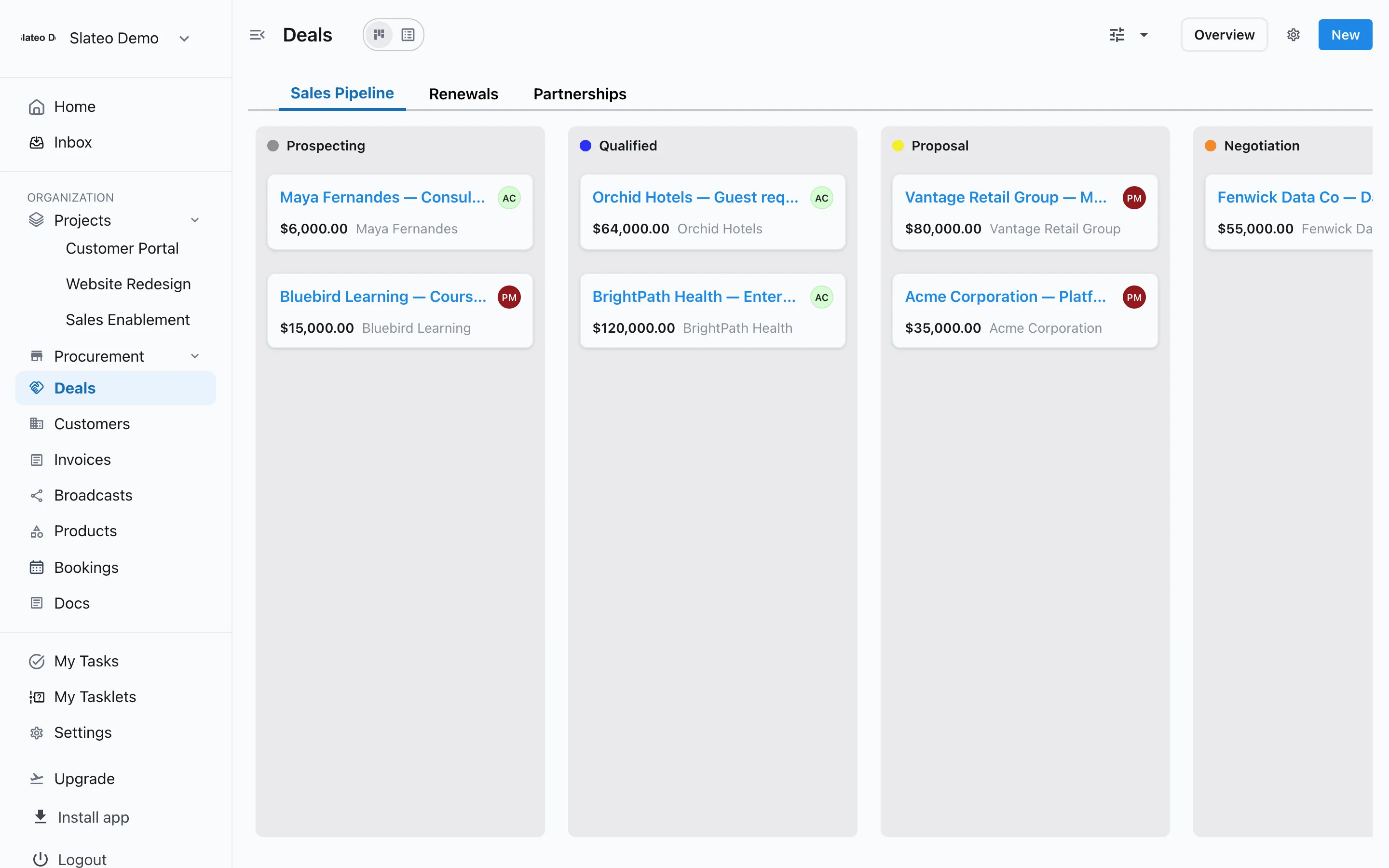
Deals by stage, with their amounts. Step 4: Work a deal
Open a deal to edit its details and your own fields, log calls, emails, meetings and notes, set reminders and create invoices. When a deal is lost, add the Lost Reason so you can learn from it.
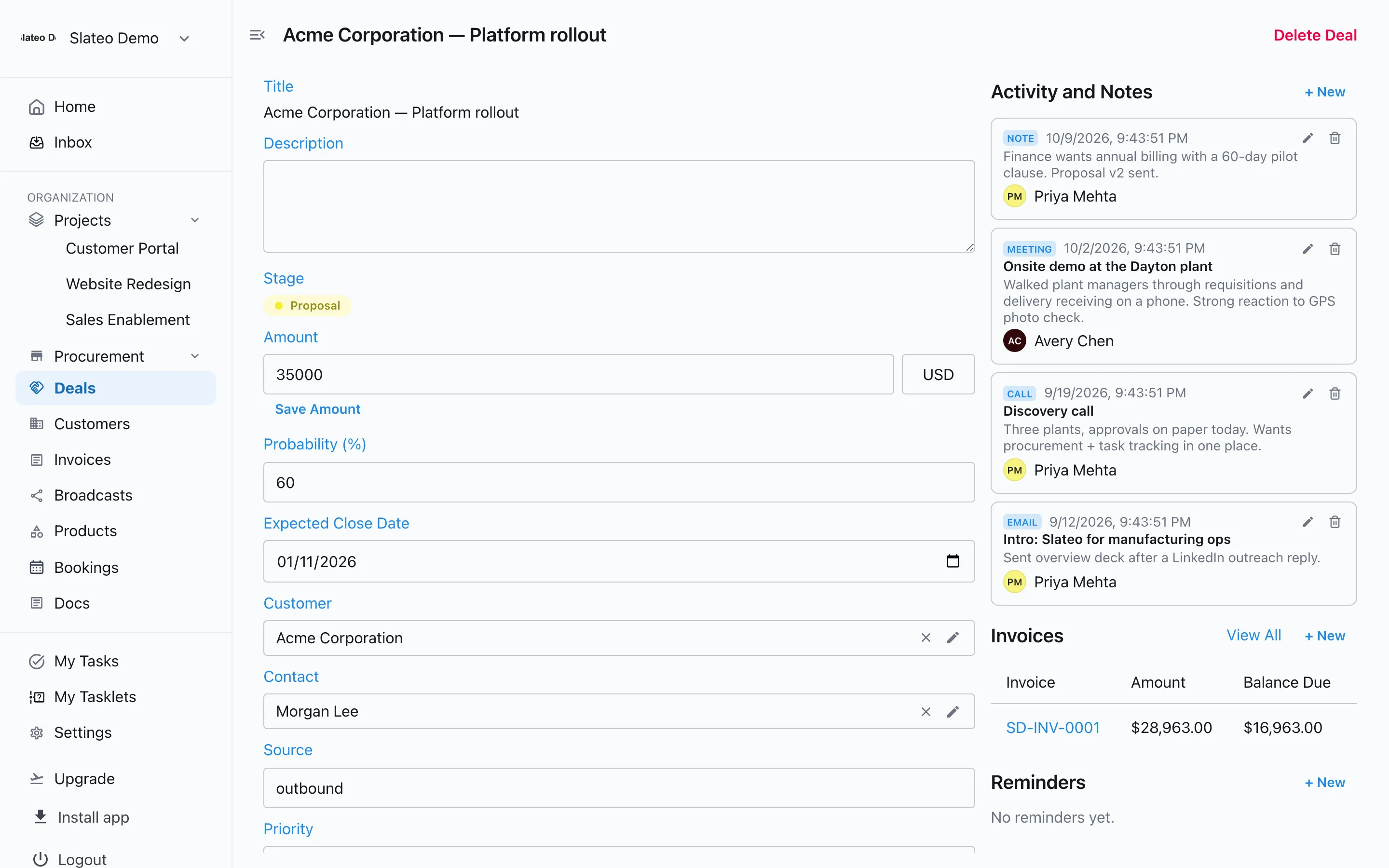
A deal with its timeline and an invoice. Step 5: Read the dashboard
Choose Overview on the deals board to see total deals, your win rate, open pipeline value, the pipeline by stage, deals closing in the next 14 days and the top open deals. View all pipelines together or one at a time.
Step 6: Require approval for a stage
Stages can need an approval before a deal enters them, like a manager signing off on a discount before Proposal. People whose role allows it can bypass an approval, and Slateo records who did.
See Set up stages, rules and approvals for how approvals work.
Was this guide helpful?