
Plan with phases, releases, sprints and milestones
Last updated:
Plan a project in sprints, releases, phases or all three, and keep every task in the right one.
Step 1: Turn on the planning features you need
When you create a project, pick them under Planning Features (optional). For an existing project, go to Settings → Projects, select the project, and under Planning Features turn on Phases, Releases, Sprints or Milestones, then Save.
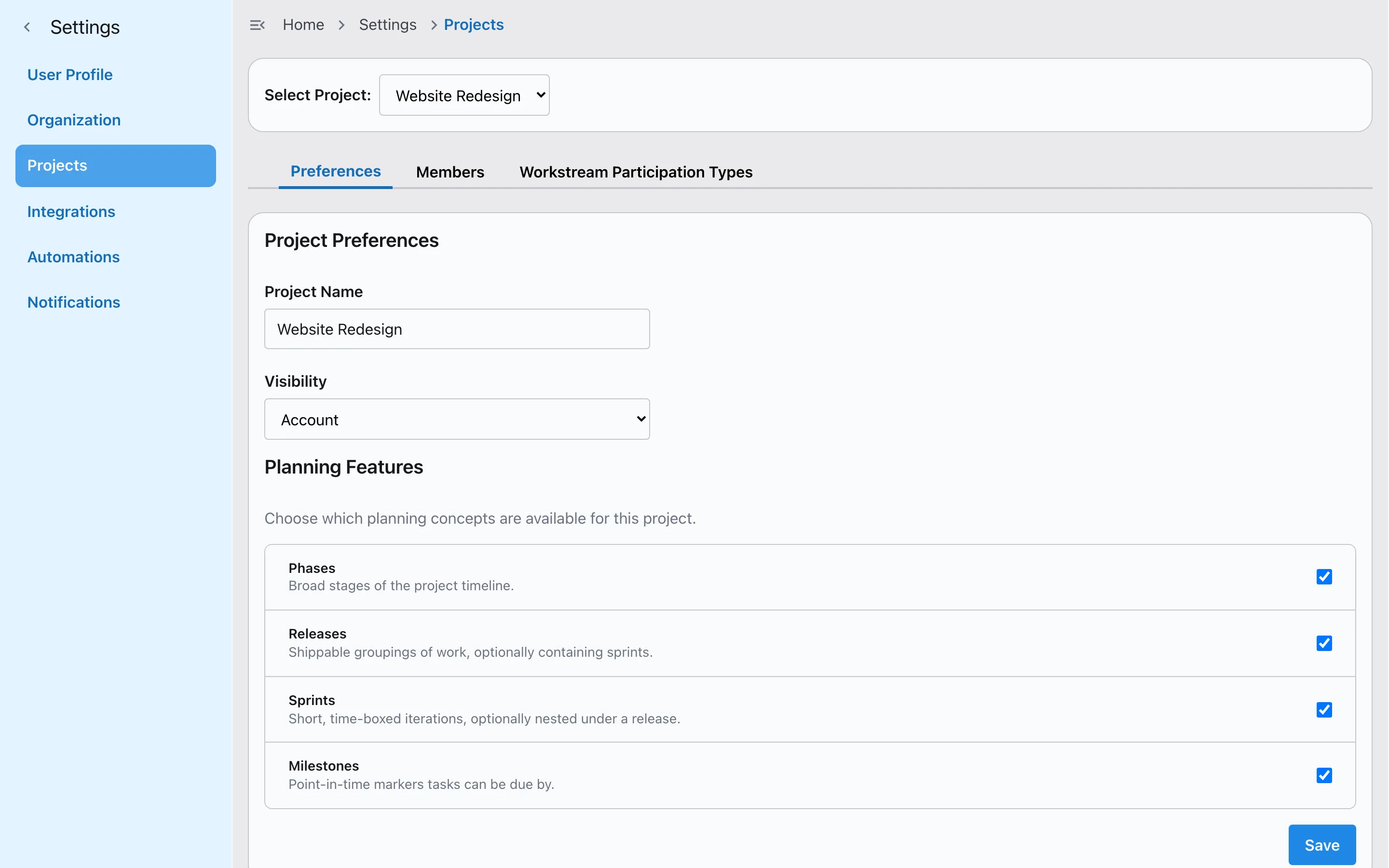
Planning features for one project. Step 2: Add cycles and milestones
Open the project's Cycles & Milestones page in the sidebar. Add a phase, release or sprint with its Start Date and End Date, and choose Add Milestone for the dates you can't miss. Put a sprint inside a release with Parent Release. Two cycles of the same kind can't overlap.
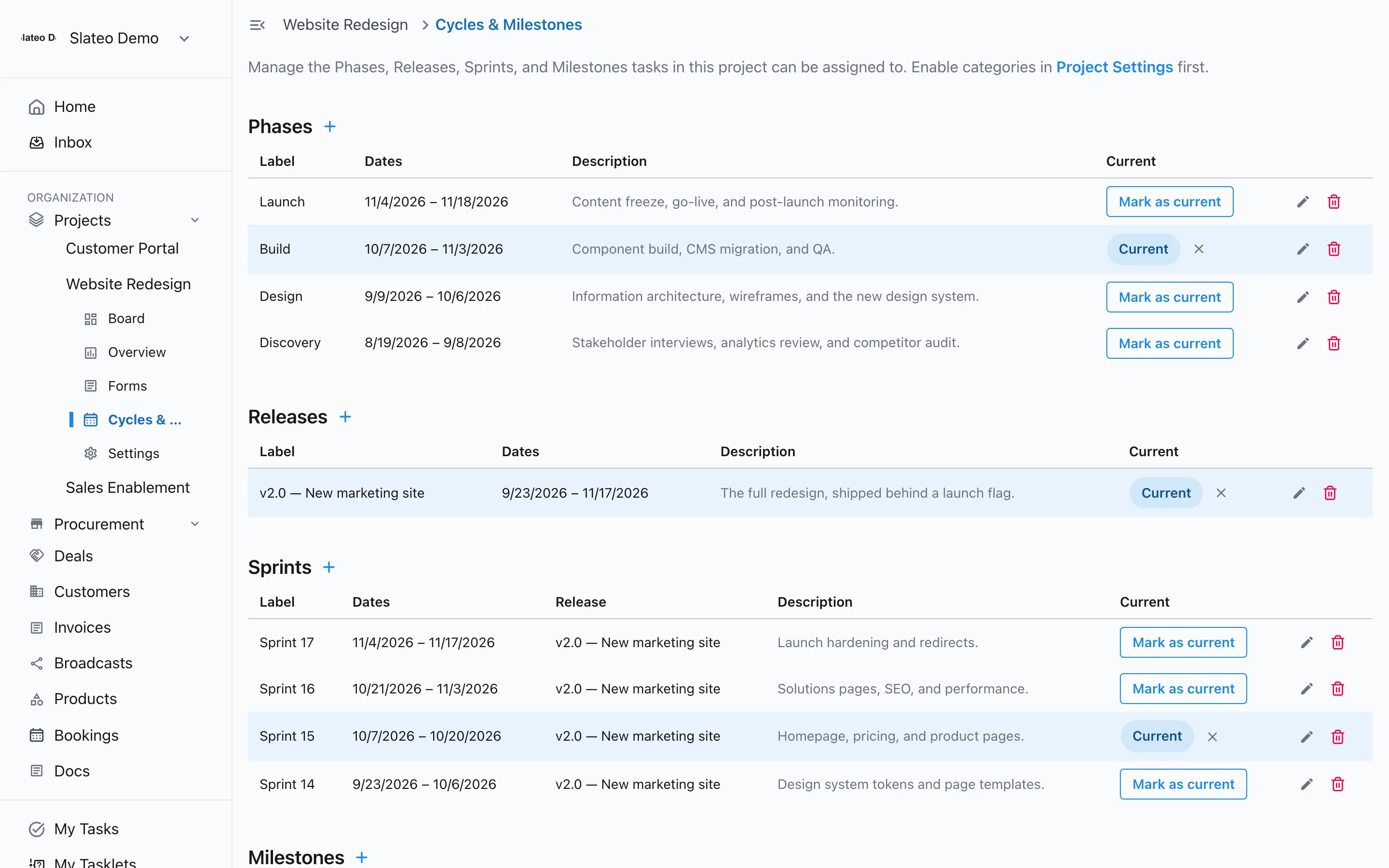
Phases, a release and sprints, with the current ones marked. Step 3: Mark what's current
Choose Mark as current on the phase, release or sprint the team is working in now, so everyone knows which one counts.
Step 4: Put tasks in a cycle
When you create or open a task, set its Cycle and Milestone. When plans change, move the task to another cycle without touching the rest of the board.
Step 5: Add reminders and links
Add a reminder to a task so its owner is notified when it's due, and link tasks to show which one has to come first. Links show the order; they don't stop a task from moving.
Was this guide helpful?