
Use the API and MCP
Last updated:
Connect your own tools to Slateo with an API key, or let an AI assistant work in your workspace over MCP.
Step 1: Create an API key
Go to Settings → User Profile → API Keys and choose New API Key. Name it after what will use it, such as a CRM sync, then copy the key straight away: you won't be able to see it again.
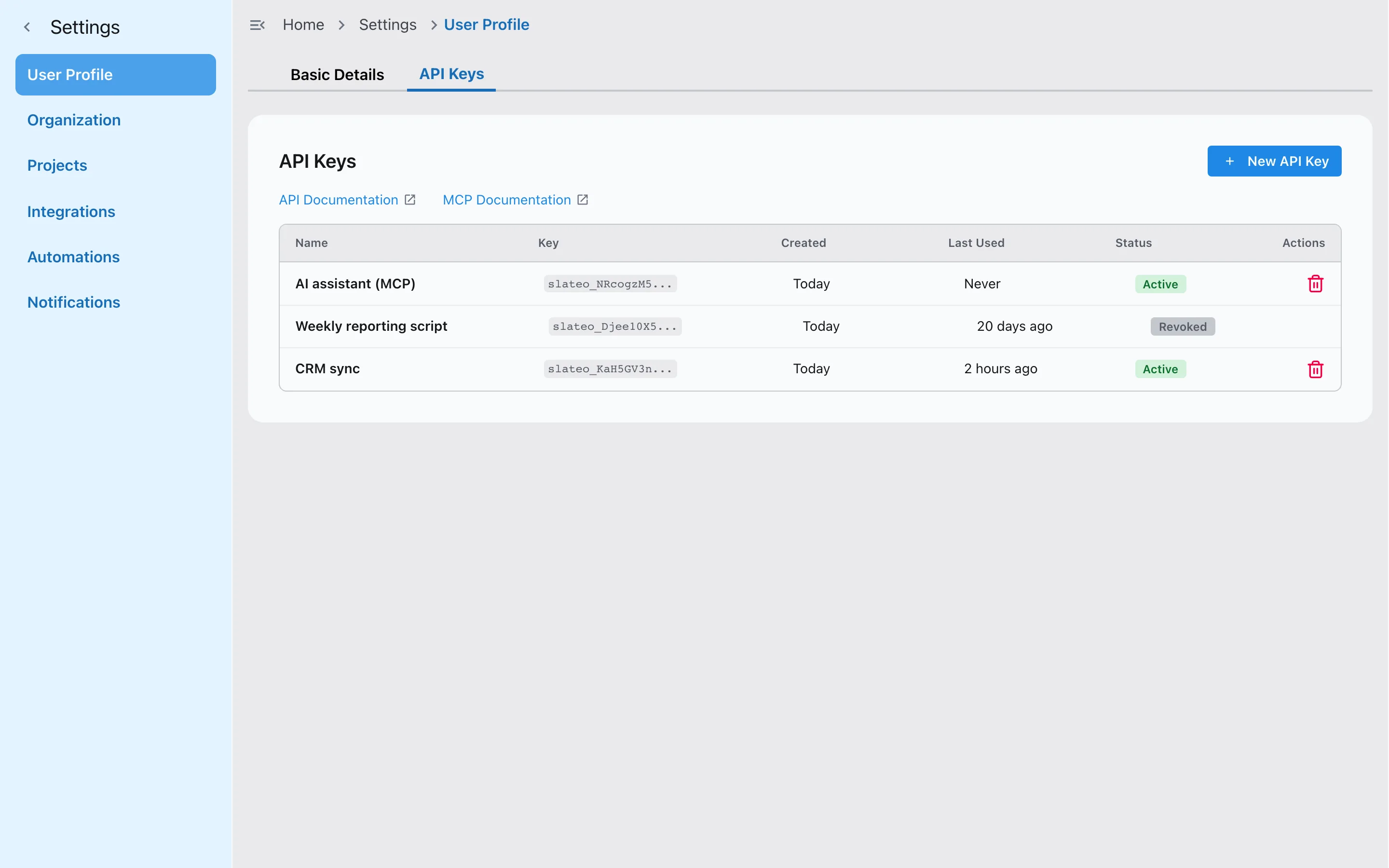
Your API keys, with when each was last used. Step 2: Read the docs
Choose API Documentation on the same page for the reference: a quickstart, authentication, every endpoint and a downloadable OpenAPI specification. Choose MCP Documentation for the MCP server's address and tools.
Every request acts as you, with exactly your role and project access.
Step 3: Connect an AI assistant
In an AI assistant that supports MCP and remote servers, add Slateo's MCP server address from the MCP docs. Sign in to Slateo when asked and approve the connection on the screen that shows which workspace it will reach. The assistant can then look up, create and update your records.
Step 4: Know your plan's limits
Free includes 500 API requests and 500 MCP operations a month, one key per member, and Basic access: tasks, projects, customers, workstreams, deals and invoices. Paid plans remove the monthly caps and add Full access to everything else. If you reach a monthly limit, requests pause until the next month.
Step 5: Revoke a key
Check Last Used on the API Keys page, and revoke any key you no longer need. It stops working straight away.
Was this guide helpful?