
Set up stages, rules and approvals
Last updated:
Make your board follow your process: the stages work moves through, the rules it must meet, and who has to sign off.
Step 1: Add, rename and order your stages
On a project board, open the ⋮ menu on a column and choose Edit to rename the stage or change its type: Backlog, In Progress, Done or Cancelled. Choose + Add New Stage at the end of the board to add one. Stages belong to the workstream type, so every workstream of that type shares them.
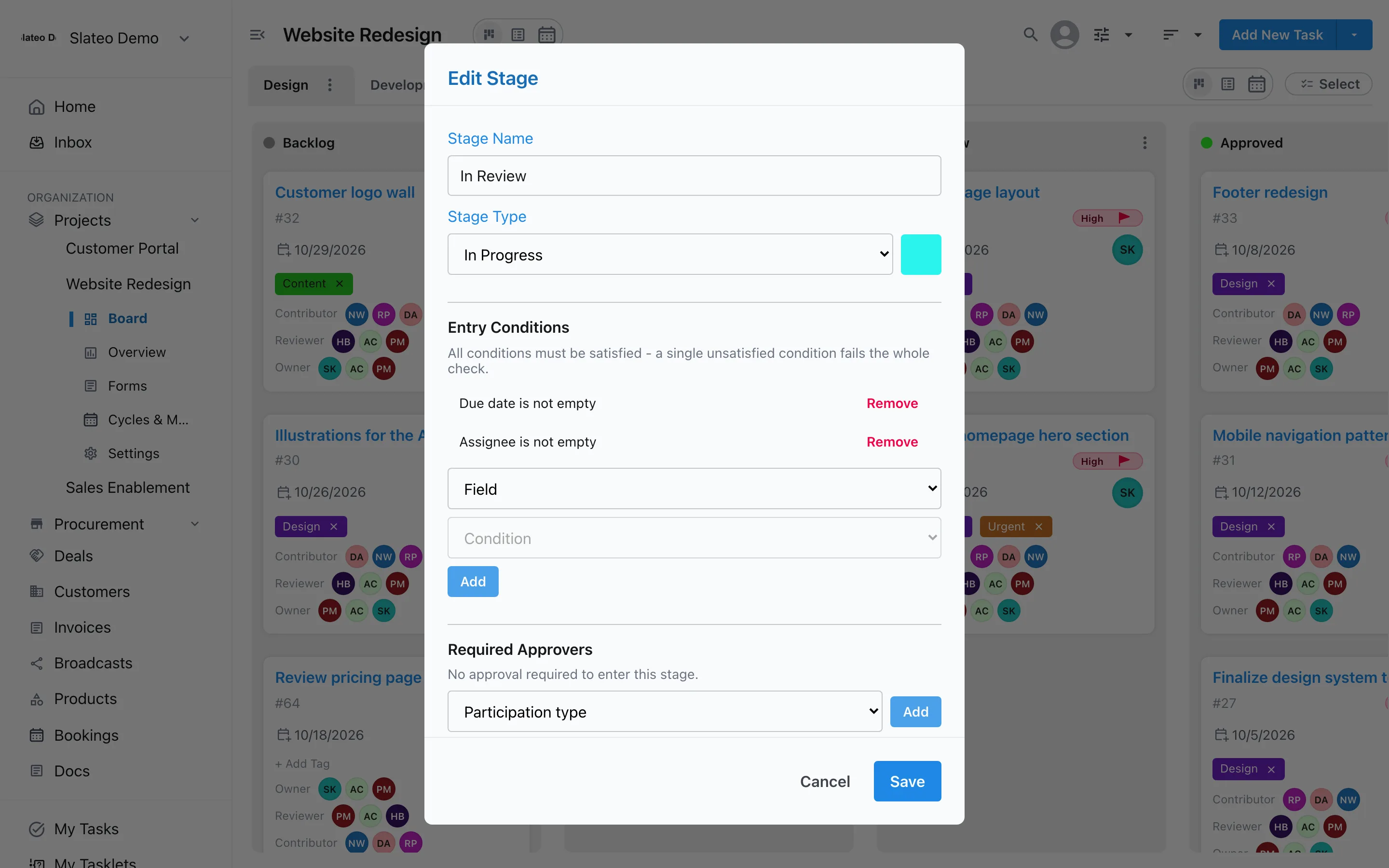
The Edit Stage window. Step 2: Add entry conditions
In Edit Stage, under Entry Conditions, choose a field and a condition, such as Due date is not empty, then choose Add. You can use task fields and your own custom fields. A task can only enter the stage when every condition is met, and Slateo shows which ones are missing.
Good first rules: an assignee and a due date before work enters review.
Step 3: Decide who plays which part
Participation types are the parts people play on a task, such as Owner, Reviewer and Contributor. Set them up in Settings → Projects → Workstream Participation Types, then add people to a task under Participants.
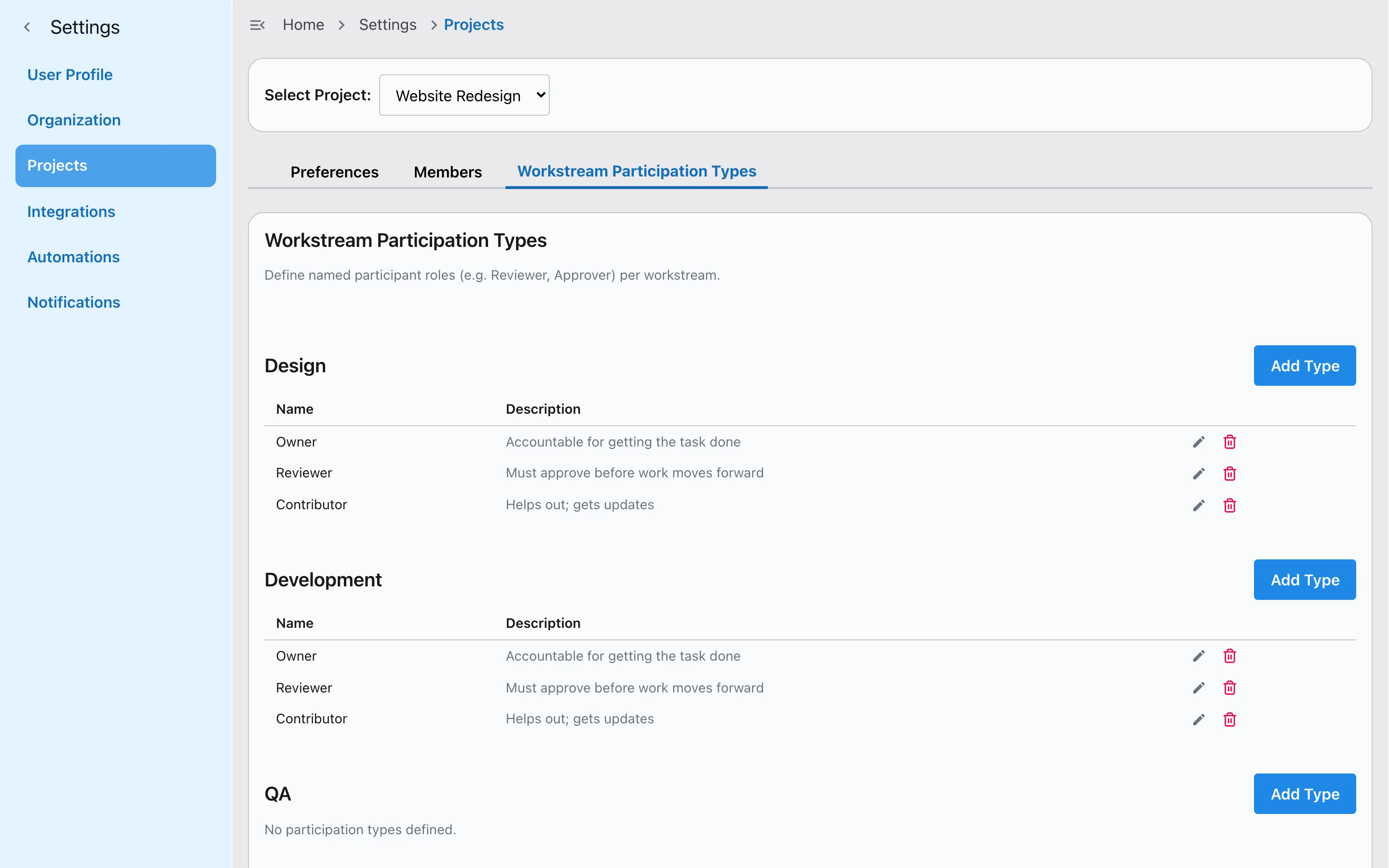
Owner, Reviewer and Contributor for a workstream. Step 4: Require an approval to enter a stage
In Edit Stage, under Required Approvers, choose a participation type, such as Reviewer, choose Add, then Save. From then on, a task needs approval from a person in that part before it can move into the stage.
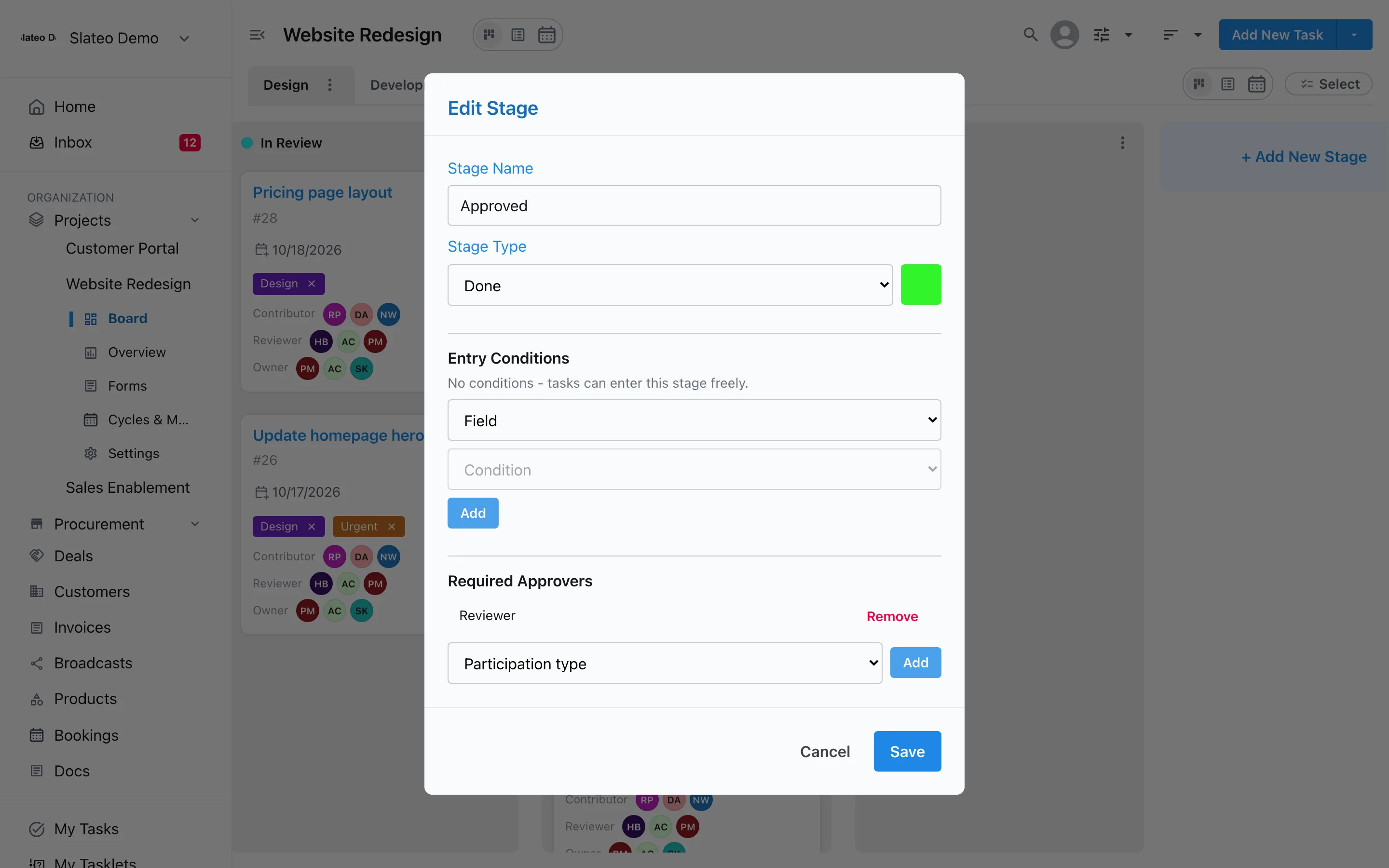
A Reviewer must approve before work is marked Approved. Step 5: Request, remind and approve
On the task, the approvals for the next stage show who still needs to sign off. Choose Request to ask them, or Remind if they've already been asked. The request lands in their inbox, and the approver chooses Approve on the task.
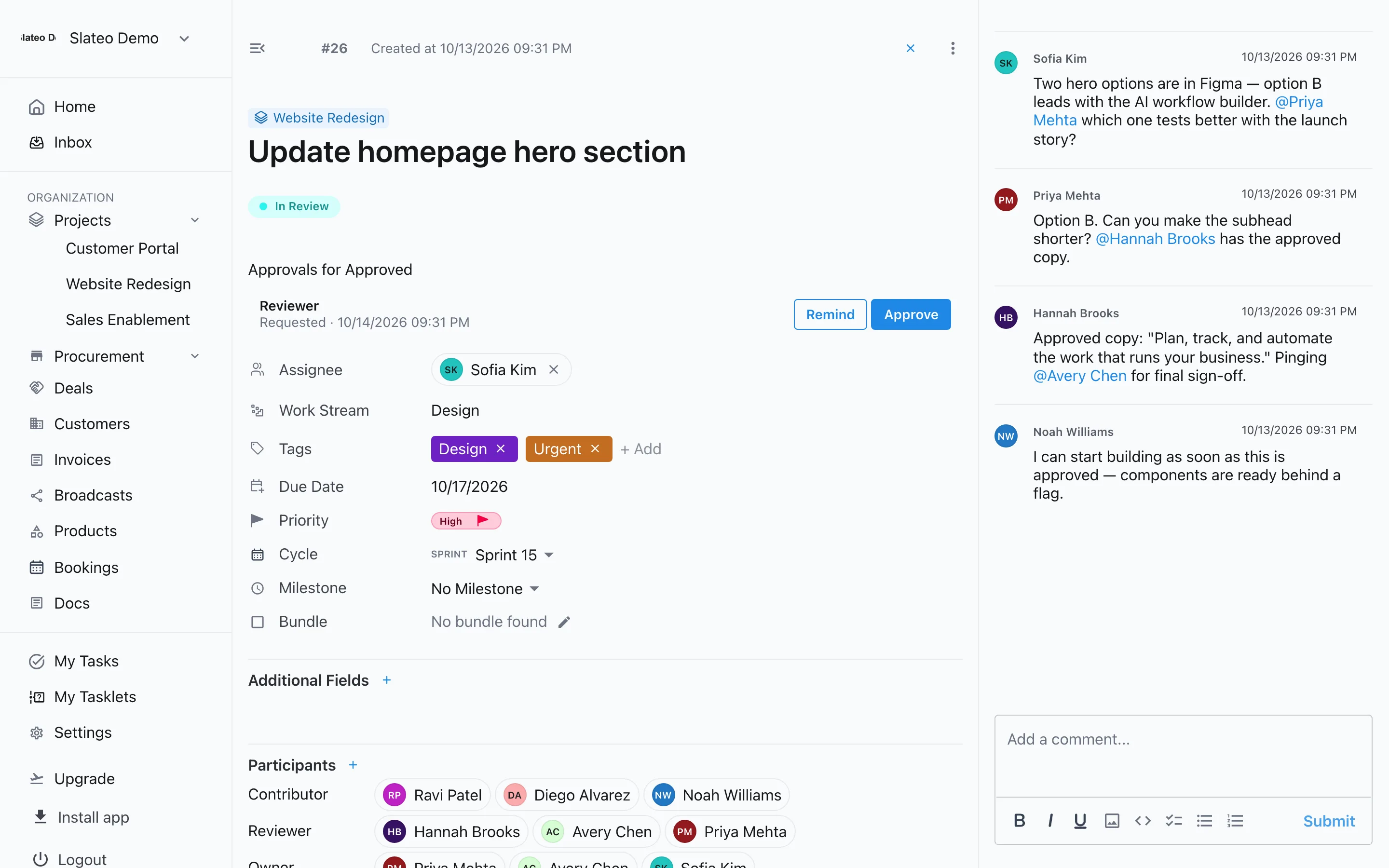
An approval requested from a reviewer, with Remind and Approve. Step 6: When a move is blocked
If someone tries to move a task before its conditions or approvals are met, Slateo stops the move and explains what's missing. People whose role allows it can choose Bypass approval, and the bypass is recorded.
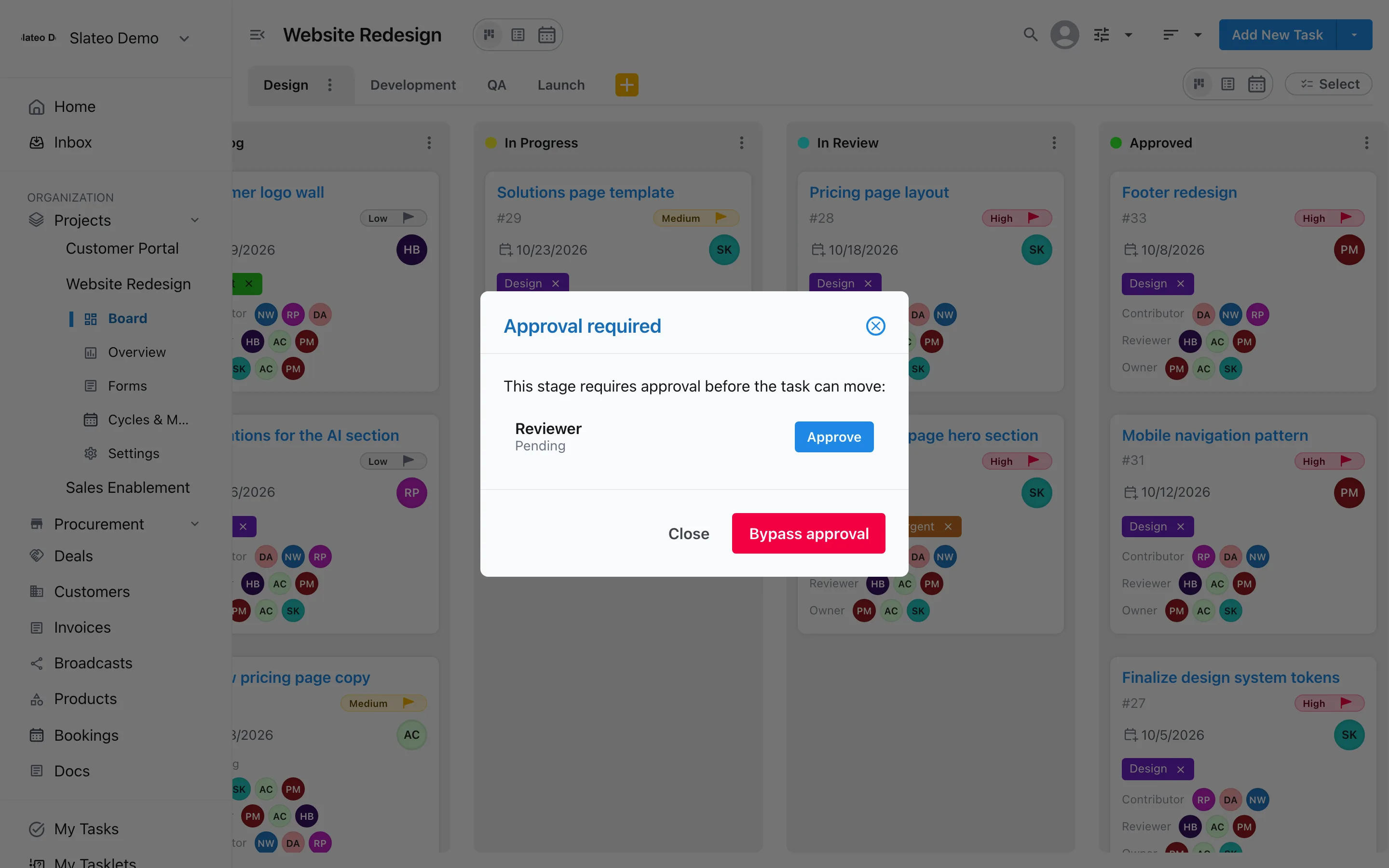
A move blocked until the Reviewer approves.
Was this guide helpful?